Computer Troubleshooting: Common Issues and Practical Fixes
A practical guide to common PC problems for home users and small businesses: slow computers, crashes, WiFi drops, malware signs, and quick fixes.
Computers fail in predictable ways. Slow boots, frozen apps, and mystery WiFi drops show up in homes and small offices every week. This guide walks through the most common issues, what they usually mean, and what you can try before calling for help.
TL;DR: Most everyday PC problems come from storage, startup clutter, updates, network gear, or malware. Check free disk space, reboot the router, scan for malware, and note error messages. If the same issue returns after basic fixes, get a proper diagnosis instead of guessing.
What is computer troubleshooting?
Computer troubleshooting is the process of finding why a PC, laptop, or related device misbehaves and fixing the root cause. For small businesses and home users, it means getting back to work without reinstalling everything on a hunch.
Good troubleshooting is systematic: symptoms, recent changes, quick safe tests, then targeted fixes. IvyyDev offers this as IT support and computer help, remotely or on-site in Blekinge and Skåne. The parent guide is IT guide for small businesses and home users.
Why fixing common issues early matters
Small problems become expensive when ignored. A clicking hard drive becomes data loss. A laptop that runs hot burns out. Malware that "only" slows the PC may be stealing passwords.
- Data: photos, invoices, and client files are often on one machine
- Time: reboot loops steal billable hours
- Security: infections spread to email contacts and cloud accounts
- Hardware: early diagnosis can mean a cheap PSU swap instead of a new PC
How troubleshooting works step by step
- Capture symptoms: exact error text, when it started, one device or all
- List recent changes: updates, new software, new hardware
- Quick isolation: safe mode, another user profile, cable instead of WiFi
- Apply targeted fix: disk cleanup, driver rollback, malware scan, router reboot
- Verify and document: does the issue return after restart?
Practical steps for the most common problems
Slow computer
- Check free space on C: (below 10–15% free hurts performance)
- Review startup apps in Task Manager
- Run Windows Update and reboot
- Consider SSD upgrade if you still use a spinning disk
PC freezes or blue screens
- Note stop code on blue screen
- Check RAM and disk with built-in tools if crashes repeat
- Undo recent driver or software installs
- Watch for overheating (fans loud, hot case)
WiFi drops or weak signal
- Reboot router and test near the router first
- Separate 2.4 GHz for range and 5 GHz for speed where supported
- Move router out of cabinets and away from thick walls
- See small office network setup for layout tips
Malware and popups
- Disconnect from network if ransomware is suspected
- Run full scan with Windows Security or trusted tool
- Remove unknown browser extensions and reset suspicious browsers
- Change passwords from a clean device after cleanup
Will not boot or powers off
- Check power cable, outlet, and laptop battery
- Listen for beeps or clicking drives
- Do not keep forcing power on if you smell burning or hear clicks
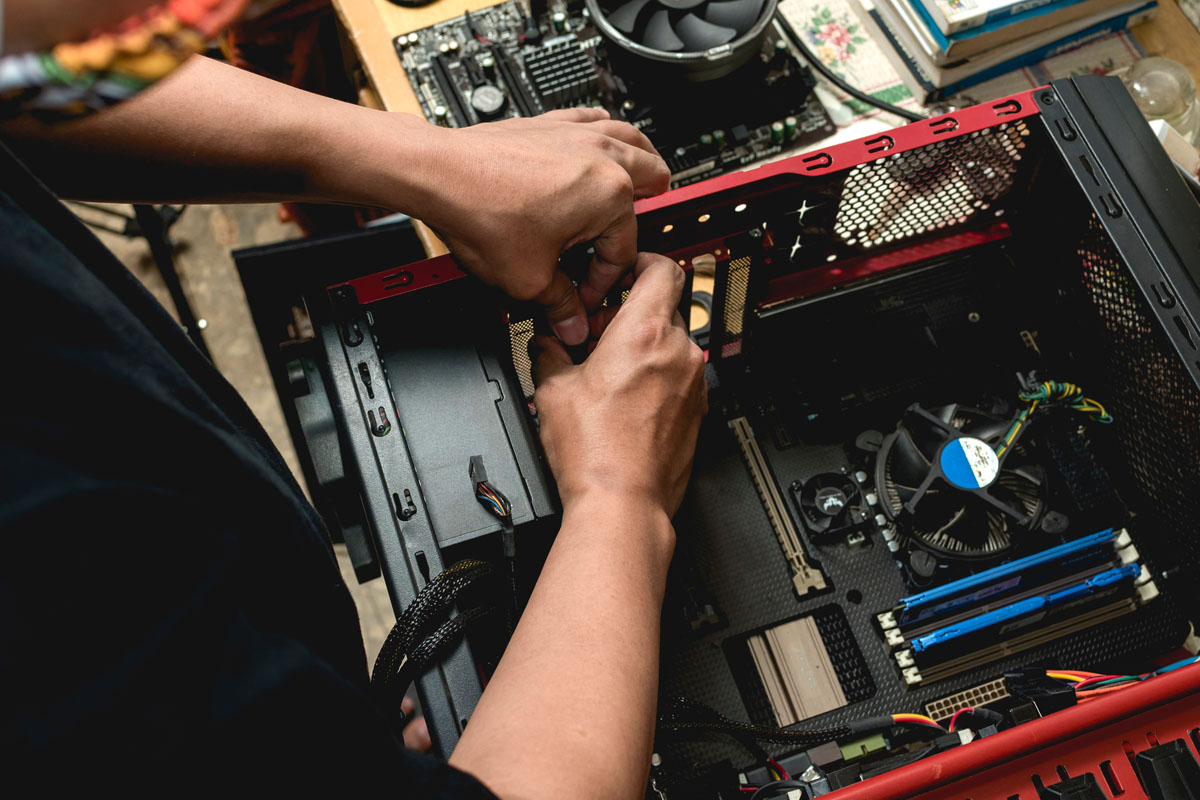
- Book on-site help for hardware inside the case
When to stop DIY and get help
Call or message for support when:
- you risk losing data you cannot replace
- the same crash happens daily after basic fixes
- you suspect ransomware or account compromise
- hardware needs opening (PSU, RAM, liquid damage)
- you already spent an hour and made no progress
Home users can read what you get from home IT support before booking.
Frequently asked questions
Why is my PC suddenly slow?
Common causes are nearly full storage, too many startup apps, background updates, malware, or failing hard drives. Check disk space and Task Manager first.
Should I fix a blue screen myself?
Note the stop code and recent changes. One-off bluescreens after updates can settle. Repeated crashes need proper diagnostics.
Can malware slow my computer without popups?
Yes. Miners and adware often hide in the background. Run a reputable scan and remove suspicious browser extensions.
When is it time to replace instead of repair?
If the PC is very old, needs multiple parts, or cannot run a supported Windows version, a sensible new or refurbished machine may cost less long term.
Can you troubleshoot remotely?
Many software issues yes. Hardware symptoms like random power-off usually need on-site help in Blekinge or Skåne.
Conclusion
Most computer problems are boring once diagnosed. Start with space, updates, network, and malware checks, then escalate when symptoms persist. Professional troubleshooting saves time when the issue is hardware or security related.
Contact me for computer troubleshooting or visit the IT support page.

Jamie Bech
Senior Developer & Technical Specialist
I'm a senior developer with expertise in modern web technologies, infrastructure, and business automation. With over 8 years of experience, I specialize in creating efficient solutions that help businesses scale and grow.
Related Articles
More guides on IT, web, and practical AI for small businesses and home users